
This is a tutorial about a very simple and very performant blur shader for Godot 4. If you just want the shader skip here.
About Blurring#
There’s a bunch of different blur algorithms used in computer graphics. Most of them work by sampling adjacent pixels to get an average color for them, which introduces a major problem.
- More blur > More pixels to sample > Less performance
Luckily in Godot we don’t have to do that, because of one nice feature present in almost all the game engines.
Mipmaps#
Mipmaps are a sequence of low-res versions of textures (I think you know where I’m going with this). They’re usually used for things like:
- Level Of Detail
- Speeding up rendering
- Reduce aliasing (see image below)
And the great part is: Godot does this automatically for us!
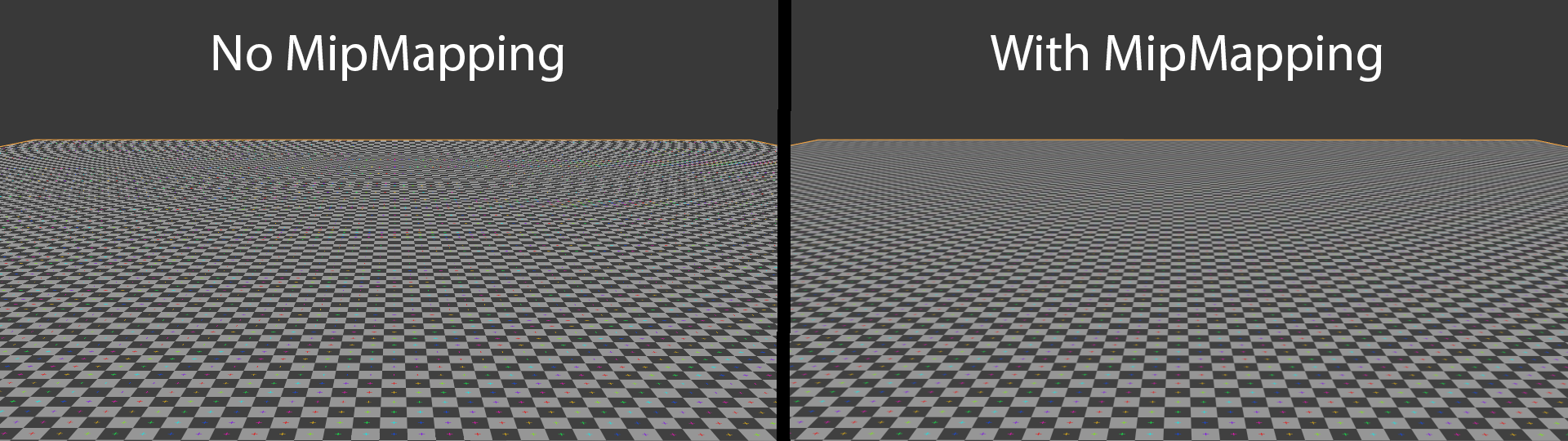
Breakdown#
To achieve the effect shown in the cover image, you’ll first have to create a ShaderMaterial and add it to the material slot of any Canvas Item (ColorRect, Sprite2D, TextureRect etc).
Uniforms#
shader_type canvas_item;

uniform float blur_amount : hint_range(0.0, 8.0) = 2.0;
uniform sampler2D screen_texture : hint_screen_texture, filter_linear_mipmap;blur_amountis used to control the amount of blur (of course)hint_rangeis a flag used to tell Godot that the value will be withing this range. It’s not necessary, but it adds a nice slider for the uniform in the editor.
screen_texturegives us access to the image on the screen.hint_screen_texturetells Godot that it is in fact the screen texture. Otherwise it’d be a texture like any other.filter_linear_mipmapis important as it allows us to sample lower resolutions of the screen texture.
filter_linear_mipmapFragment#
In the fragment() function we really only do one thing
void fragment(){
    vec4 color = textureLod(screen_texture, SCREEN_UV, blur_amount);
    COLOR = color;
}- For
colorwe usetextureLod()to sample the screen texture.SCREEN_UVis the UV coordinates of the current pixel on the screen.- We use our
blur_amountto sample a specific mipmap level (Higher value > lower resolution) - Because we specified earlier that
screen_texturewould usefilter_linear_mipmap, we’ll get a nice blurred version of the screen.
To blur only one image do this:
Without hint_screen_texture you can set the texture in the Shader Parameters of your material.
Make sure you enable Mipmaps > Generate under the Import settings of your texture
In this case you should use UV instead of SCREEN_UV
Full shader#
shader_type canvas_item;

uniform float blur_amount : hint_range(0.0, 8.0) = 2.0;

uniform sampler2D screen_texture : hint_screen_texture, filter_linear_mipmap;

void fragment() {
	vec4 color = textureLod(screen_texture, SCREEN_UV, blur_amount);
	COLOR = color;
}